Managing Repack Types
Repack types let you categorise different kinds of repacking work carried out in your warehouse. Each type has a code, name, and colour so they're easy to identify at a glance.
Viewing Your Repack Types
- Go to Stores → Settings → Repack Types.
- You'll see a list of all repack types with their code, name, and colour swatch.
- Use the filter tabs to switch between Active and Archived types.
Creating a New Repack Type
- Click the New Repack Type button.
- Fill in the following fields:
- Code (required) — A short code using letters and numbers only, e.g. "RELAB", "SPLIT", "BUNDLE". This will be converted to uppercase automatically.
- Name (required) — A descriptive name, e.g. "Relabelling", "Pallet Split", "Bundle Pack".
- Colour — Pick a colour using the colour picker. This colour is used to visually distinguish this repack type in lists and on orders. The default is black.
- Click Save.
Editing a Repack Type
- Click on a repack type in the list to open it.
- Update the fields as needed and click Save.
Archiving a Repack Type
- Open the repack type.
-
Click the three-dot menu (⋮) and select Archive.
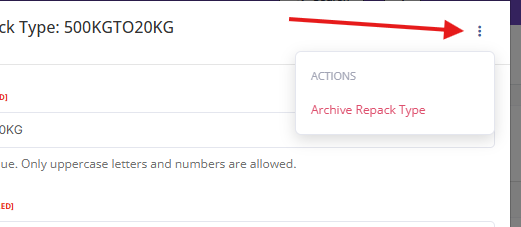
- Confirm the action.
Archived repack types won't appear in selection dropdowns when creating repack orders. Existing orders using that type are unaffected. Restore by opening and saving again.
Tips
- Use colours that are distinct from each other so repack types are easy to tell apart at a glance.
- Keep codes short and meaningful — they appear alongside repack orders throughout the system.