Stock Restrictions
Introduction
Stock restrictions allow you to control exactly which inbound stock is used to fulfil a Goods Out order. When a customer requires items from a specific batch, production run, or delivery, restrictions ensure the right stock is picked. This guide explains how to set up and manage restrictions on your outbound orders.
When to Use Restrictions
Restrictions are useful when:
- A customer requests items from a specific batch or lot number.
- You need to fulfil an order using stock from a particular Goods In delivery.
- Quality or compliance requirements mean only certain stock is suitable.
- You want to ensure traceability by linking outbound shipments to specific inbound receipts.
Most orders won't need restrictions — they are entirely optional.
How Restrictions Work
A restriction links a product line on a Goods Out order to one or more specific Goods In lines. When restrictions are set:
- The restricted Goods In lines are marked as Preferred in the allocation window.
- You must allocate the full restricted quantity from those preferred items before you can allocate from any other available stock.
- Other orders cannot use stock from the same restricted Goods In lines, preventing conflicts.
This means restrictions act as a reservation at the batch level — locking specific inbound stock for a particular outbound order.
Adding Restrictions to a Product Line
- Open the Goods Out order from Menu → Movements → Goods Out.
- Click on the product line you want to restrict to open the Edit Line view.
-
In the Restrictions section on the left, click Manage.
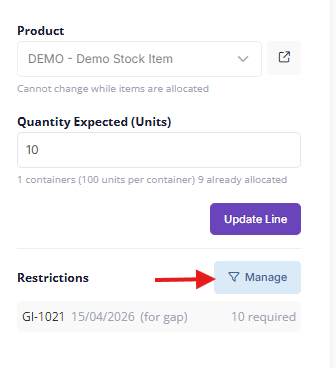
- The restriction picker opens, showing all Goods In lines for that product that have available stock.
- For each Goods In line you want to restrict to:
- Enter the quantity required from that batch.
- You can restrict to multiple Goods In lines if needed.
- Click Save to apply the restrictions.
The product line will now show a Restricted badge, and the allocation window will prioritise those items.
Goods In lines that are already restricted by other orders will appear dimmed and cannot be selected. This prevents two orders from competing for the same restricted stock.
Allocating with Restrictions
When you open the allocation window for a restricted line:
- A Preferred Source Items section appears at the top, showing items from the restricted Goods In lines.
- Other available items are shown below but are locked until the restricted quantity is fully allocated.
- Once the restricted quantity has been met, the remaining items are unlocked and you can allocate freely.
Auto-allocate also respects restrictions — it will pick from restricted items first before moving on to other stock.
Updating or Removing Restrictions
To change restrictions on a line:
- Open the product line and click Manage in the Restrictions section.
- Adjust the quantities or clear them entirely.
- Click Save.
Removing a restriction does not affect any allocations already made — it simply unlocks the line for future allocations from any available stock.
Key Things to Know
- Restrictions are set per product line, not per order. Different lines on the same order can have different restrictions or no restrictions at all.
- A restriction reserves the Goods In line across the system — other orders will see it as unavailable.
- If a restricted Goods In line no longer has enough stock (e.g., it was used elsewhere before the restriction was set), you may need to adjust the restriction quantity or source from a different batch.
- Restrictions work alongside FIFO — within the restricted items, the oldest stock is still presented first.