How to Use E-Sign
E-Sign lets you request a customer's signature remotely, rather than requiring them to sign directly in the app. It is also available within the Site Manager/Weighbridge module.
From an Order
E-Sign can be used on any complete or in-progress order, provided at least the collection stage has occurred.
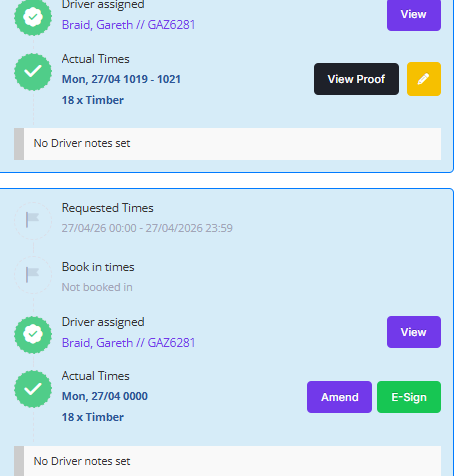
- Open the order and go to the Completion tab. Next to the actual times, you will see one of the following:
- View Proof – shown if the driver completed the order in-app.
-
Amend / E-Sign – shown if the driver did not complete in-app.
-
If View Proof is shown, clicking it opens the Proof of Collection modal, which displays the driver's signature, timestamps, and a map of the collection/delivery location. An E-Sign button is also available in the top-right corner of this modal.

- If the driver did not complete in-app, the E-Sign button will be shown directly in place of View Proof.
-
Clicking E-Sign opens the Send E-Signature Link modal. From here, you can either generate a QR code for immediate scanning or send a link by email.
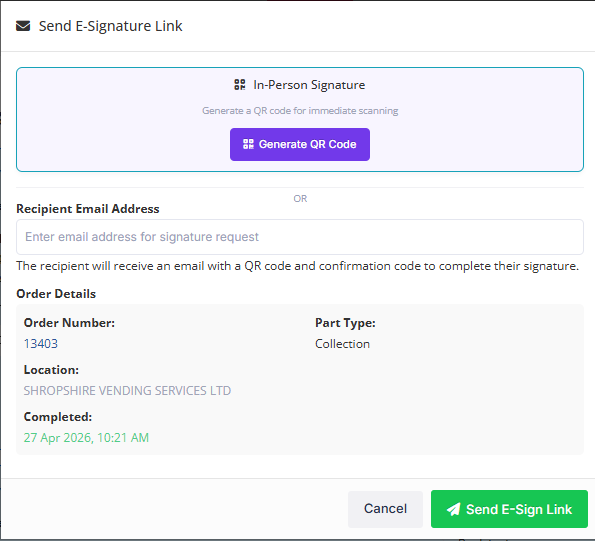
Sending by email is the most common option. Enter the customer's email address and they will receive an email with instructions. They can then either click the link and enter the provided code, or scan the QR code included in the email.

Immediate QR scanning is useful for testing or if the customer is physically present. A popup will display the QR code, along with the order number, type, location, and a manual entry code. The manual code is only needed if a smartphone is not available.
Once the customer has signed, their name and signature will appear via the View Proof button and on the Delivery Note.
From the Site Manager / Weighbridge Module
- In the Site Manager for your location, go to Order Listing in the top navigation menu.
- Select the date of the collection or delivery.
-
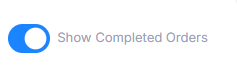
If both delivery & collection complete, enable Show Completed Orders to make it visible.
-
At the end of the relevant order row, click the QR Code button (next to the Print button).
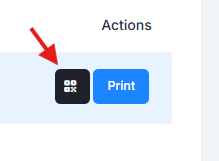
- Scan the generated QR code with a smartphone to sign off on the collection or delivery.
Once signed, the customer's name and signature will be visible from the View Proof button in the order and on the Weighbridge Ticket document.