The Redesigned Schedule View
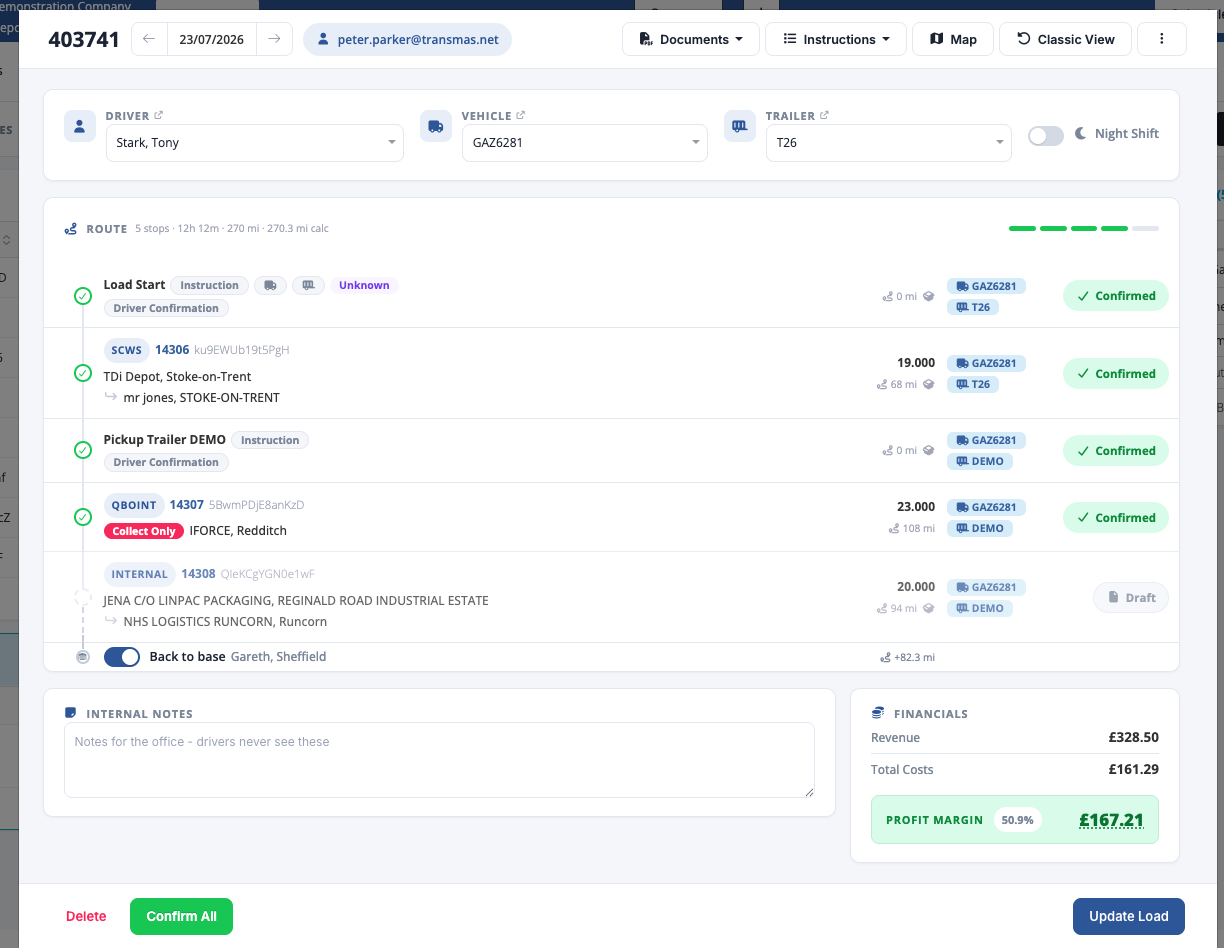
Open a schedule and it reads as a route, from first collection to final drop. This article is a tour of the screen - what each part shows and where to find things.
The route
- Stops are connected by a vertical timeline, in the order the driver will do them. The marker next to each stop shows how it is doing (draft, confirmed, in progress or complete), with the status label on the right of the row.
- A progress bar at the top of the list shows how much of the schedule is done at a glance.
- Hover over a row to reveal its Rollback, Delete and Complete links - they stay out of the way until you need them.
Driver, vehicle and trailer
The driver, vehicle and trailer are shown in a panel above the stops, with the vehicle and trailer weights next to the labels, so you can check the resources without leaving the screen.
Times, costs and profit
Estimated time, distance, costs and profit are grouped into two panels on the right, keeping the day's figures together in one place.
Order details on hover
Point at an order number to see a card with the order's customer, collection and delivery points, booked and actual times, products and notes - no need to open the order.
Working with the schedule
Everything is done from this one screen: drag stops to reorder them, right-click for quick actions, confirm lines as you plan, and open the map to see the route drawn out.
Related
- Back to Base - Costing the Journey Home - the switch at the end of the route that adds the journey home to the schedule's costs.