Managing Stock Products
Stock products define the items you handle in your warehouse. Each product has a code, name, and optional costing configuration that determines how charges are calculated when goods come in, go out, or are stored.
Viewing Your Stock Products
- Go to Stores → Settings → Stock.
-
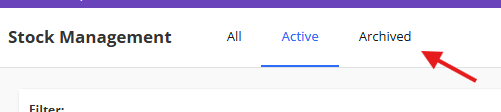
You'll see a list of all products. Use the filter tabs to switch between Active and Archived products.
Creating a New Stock Product
- Click the New Stock button.
- The form has two tabs: Details and Costings.
Details Tab
- Customer (optional) — If this product is specific to one customer, select them here. Leave blank if the product is used across multiple customers.
- Code (required) — A unique code for the product, up to 20 characters, e.g. "WIDGET-01" or "PAL-WRAP".
- Name (required) — A descriptive name for the product.
- Linked Product (optional) — If this stock item corresponds to a product in the main TMS, you can link it here by searching.
- Has Outers — Tick this if the product
- Units per container — If the product is received in outer packaging (e.g. pallets or boxes) that contain multiple inner items, this sets the default number of units per container, e.g. 24 bottles per case.
Costings Tab
The costings tab lets you configure how charges are automatically calculated for this product. Learn more with the Managing Handling and Storage Charges article. There are three separate costing areas:
Goods In Costing
Charges applied when this product is received into the warehouse.
- Costing Type — Choose how the charge is calculated:
- None — No automatic charge.
- Fixed per line — A flat charge regardless of quantity.
- Per Container — Charge per container/outer item received (e.g. per pallet).
- Per Unit — Charge per inner unit received.
- Zero Rate - Similar to none, but officially sets the rate to 0 and shows zero rated in table.
- Rate — The cost per unit (or fixed amount). Supports up to 4 decimal places.
Goods Out Costing
Charges applied when this product is dispatched from the warehouse. Same options as above.
Storage Costing
Charges applied for storing this product over time.
- Costing Type — Same options as above (None, Per Container, Per Unit, Zero Rated, Fixed).
- Rate — The storage cost per unit.
- Scaling Factor (only shown for "Per Unit") — A divisor used to convert inner quantities to a different unit for billing. For example, if you store items measured in kilograms but bill per tonne, set the scaling factor to 1000.
Editing a Stock Product
- Click on a product in the list to open it.
- Make your changes across either tab and click Save.
Archiving a Stock Product
- Open the product.
-
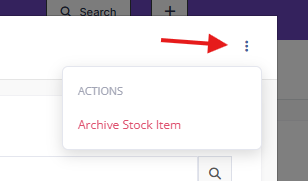
Click the three-dot menu (⋮) and select Archive.
- Confirm the action.
Archived products won't appear in product selection dropdowns when creating orders. Existing orders referencing the product are unaffected. Restore a product by opening it and saving again.
Tips
- Set up costings before you start processing orders — charges are generated automatically when orders are completed, based on these rates.
- Fill in the the "Units per container" option for products that arrive on pallets or in cases. This helps the system track both outer and inner quantities.
- Keep product codes consistent and recognisable — your warehouse team will see these throughout the system.