Managing Handling and Storage Costs
TransMaS can automatically calculate handling charges when goods are received or dispatched, and generate periodic storage charges for stock held in your warehouse. This article explains how to set up costing rates and how charges are applied.
How Costing Works
There are three types of cost you can configure on each stock product:
- Goods In — Charges applied when stock is received into the warehouse.
- Goods Out — Charges applied when stock is dispatched from the warehouse.
- Storage — Charges applied periodically for stock held in your warehouse over time.
Goods In and Goods Out charges are generated automatically when an order is completed. Storage charges are generated on a recurring schedule based on each customer's billing period.
Setting Up Costing Rates
Costing rates are configured per product in Stock settings:
- Go to Stores → Settings → Stock.
- Open the product you want to configure.
-
Switch to the Costings tab.
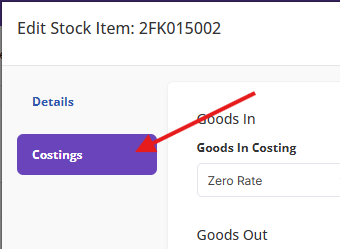
For each costing area (Goods In, Goods Out, and Storage), you can choose a costing type and set a rate:
| Costing Type | How It's Calculated |
|---|---|
| None | No automatic charge is applied. |
| Per Inner | Charge based on the number of individual units. Rate is multiplied by the total inner quantity. |
| Per Outer | Charge based on the number of containers (pallets, boxes, etc.). Rate is multiplied by the number of outers. |
| Fixed Per Line | A flat charge is applied per order line, regardless of quantity. |
The Rate field is the cost per unit (or the flat amount for fixed charges). It supports up to 4 decimal places for precision.
Storage Scaling Factor
When using Per Inner for storage costing, an additional Scaling Factor field appears. This lets you convert inner quantities to a different unit for billing purposes.

For example, if you store items measured in kilograms but bill per tonne, set the scaling factor to 1000. The system will divide the inner quantity by the scaling factor before applying the rate — so 5,000 kg of stock at a rate of £2.00 per tonne with a scaling factor of 1,000 would be charged as 5 units × £2.00 = £10.00.
How Handling Charges Are Generated
When you complete a Goods In or Goods Out order:
- The system looks at each product line on the order.
- For each product with a costing rate configured, it calculates the charge based on the costing type and the quantities received or dispatched.
- Charges are automatically added to the Charges section of the order.
These auto-generated charges are clearly marked and can be reviewed on the order. If you reopen an order, the auto-generated charges are removed and will be recalculated when you complete it again.
Adding Manual Charges
You can also add manual charges to any order (for example, for special handling or additional services):
- Open the order.
- Go to the Charges section.
-
Click Add Charge.
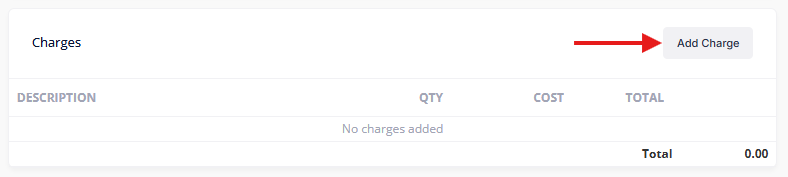
- Fill in the description, quantity, and cost per unit.
- Click Save.
Manual charges are kept even if you reopen and re-complete the order — only auto-generated charges are recalculated.
How Storage Charges Are Generated
Storage charges are generated automatically on a recurring schedule, based on each customer's billing period:
- Weekly — Charges generated for each 7-day period.
- Fortnightly — Charges generated every two weeks.
- Monthly — Charges generated for each calendar month.
The billing period and anchor day are configured per customer by the TransMaS team.
When a storage charge is generated, the system looks at all stock held for that customer during the period — including any items that were dispatched during the period — and calculates charges based on each product's storage costing configuration.
Viewing Storage Charges
- Go to Stores → Storage Charges.
- You'll see a list of all storage charges, with tabs for Uninvoiced and Charged.
Each entry shows:
- Customer name
- Billing period (start and end dates)
- Number of product lines
- Total amount
- Status (Pending or Invoiced)
Click on a storage charge to see a detailed breakdown by product, including the costing type, item count, quantity, rate, and amount for each product. You can also drill down to see the individual items that made up the charge.
Editing or Deleting a Pending Storage Charge
If a storage charge doesn't look right (for example, costing rates were wrong when it was generated):
- Open the storage charge.
- Edit costing type and rate as needed.
- Click the check at the end of the line to recalculate.
If you want to remove all charges for that customer for that period, click the bin icon at the end of the storage charge line. This removes the pending charge. You can then correct the product costing rates and the charge will be regenerated on the next billing cycle. Invoiced charges cannot be deleted.
Invoicing
Once you're happy with a storage charge, it can be included in a customer invoice through the Accounts module. After invoicing, the charge status changes to Invoiced and shows a link to the invoice number.
Tips
- Set up costing rates on your products before you start completing orders — charges are calculated at the point of completion using the rates configured at that time.
- Review auto-generated charges after completing an order to make sure they look correct.
- If you need to adjust rates, update the product in Stock settings. Future orders will use the new rates. Existing completed orders keep their original charges unless reopened and re-completed.
- Storage charges include stock that was dispatched during the period, so customers are billed for stock they held even if it's since left the warehouse.