Using Preprinted Labels for Goods In
Preprinted labels let you generate item labels in advance, before goods have actually been received. This is useful in high-volume warehouses where you want labels ready and waiting, so receiving is as fast as possible.
How It Works
Instead of printing a label each time you receive an item, you print a batch of labels ahead of time. Each label has a unique QR code. When the delivery arrives, your warehouse team scans a preprinted label while receiving — the system links that label's QR code to the new stock item, skipping the need to print on the spot.
Generating Preprinted Labels
- Open the Goods In order.
- Find the product line you want to generate labels for.
-
Click the Preprinted Labels button (barcode icon) on the line.
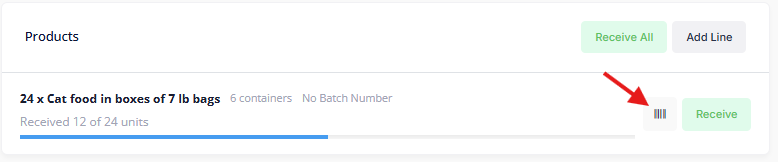
- Configure how many labels you need and confirm.
- The labels will be sent to your site's default printer (or downloaded as a PDF if automated printing isn't set up).
Using Preprinted Labels When Receiving
When receiving items (either on the web platform or the mobile app):
- Start the receive process as normal.
- Scan the preprinted label's QR code — on the mobile app this is done with the device camera; on the web platform you can enter the label code manually.
- The system will match the scanned label to the product line, assign its QR code to the new stock item, and skip auto-printing since the label already exists.
What Happens to Unused Labels
When a Goods In order is completed, any preprinted labels that weren't used are automatically removed. This keeps things tidy and prevents orphaned labels from cluttering the system.
Tips
- Preprinted labels are most useful when you have large deliveries and want to speed up the receiving process.
- Each preprinted label is tied to a specific product line, so make sure you generate labels for the right lines.
- If you're not sure how many items will arrive, it's fine to generate more labels than needed — unused ones are cleaned up on completion.