Setting Up Automated Label Printing
TransMaS can send label print jobs directly to your warehouse printers, so you don't need to download and print PDFs manually. Once set up, you can print zone labels, item labels during goods receiving, and order documents — all with a single click.
Getting Set Up
Automated label printing is configured for you by the TransMaS team. To get started, contact TransMaS support and let us know:
- Which printers you'd like to connect (make and model if possible).
- Which computer(s) the printers are connected to.
- Which warehouse site each printer should be linked to.
We'll set everything up on our side and walk you through installing a small background application on the computer connected to your printers. This application is what allows print jobs to be sent from TransMaS to your physical printers.
Assigning a Default Printer to a Site
Once the TransMaS team has connected your printers, you can assign a default printer to each warehouse site:
- Go to Stores → Settings → Sites.
- Open the site you want to configure.
-
In the Default Printer dropdown, select the printer you want to use.
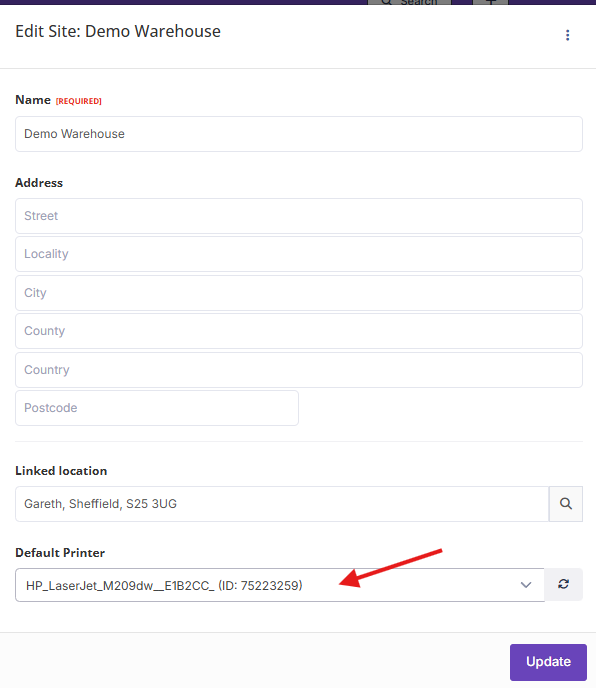
- Click Save.
This default printer will be used automatically when printing labels at that site — for example, when receiving goods and printing item labels, or when printing zone labels.
How Printing Works in Practice
Once automated printing is set up, it works seamlessly throughout the Stores module:
- Receiving goods — When you receive an item, you can tick the option to print a label. It will be sent straight to the site's default printer.
- Zone labels — From the zone settings, click Print Label to send a zone label directly to the printer.
- Order documents — Goods in and goods out order sheets can be printed directly instead of downloading a PDF.
Troubleshooting
- Printer shows as offline — Make sure the background application is running on the computer connected to the printer, and that the printer itself is turned on. If it still shows offline, contact TransMaS support.
- No printers available in the dropdown — The printer connection may not have been set up yet. Contact TransMaS support to get it configured.
- Labels not printing — Check that the correct printer is set as the default for your site. If the printer is showing as online but labels aren't coming through, contact TransMaS support for assistance.