Printing Dispatch Documents
Introduction
When dispatching goods from your warehouse, you can generate a printed dispatch document to accompany the shipment. This document provides a complete summary of the order including customer details, booking information, and a full breakdown of the items being shipped. Documents can be downloaded as a PDF or sent directly to a printer.
Generating a Dispatch Document
- Open the Goods Out order from Menu → Movements → Goods Out.
-
Click the Print dropdown button in the bottom-right of the order view.
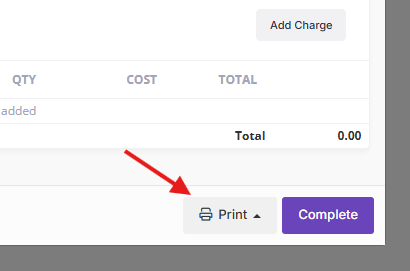
- Choose one of the following options:
- Download PDF — Generates the document and downloads it to your computer.
- A specific printer — If automated printing is set up (see Setting Up Automated Label Printing), your available printers are listed here. Select one to send the document directly to that printer.
What's Included in the Document
The dispatch document is an A4 PDF containing:
- Header — "Warehouse Dispatch" title with the order number and your company logo.
- Booking Details — Date and time, driver name, vehicle registration, and destination address.
- Shipper Information — The customer's name and code.
- Order Information — Expected date, customer reference, and carrier/haulier details.
- Items Table — A full list of products on the order, showing:
- The quantity and product name for each line.
- The specific items allocated, including batch reference and item numbers.
When to Print
You can generate the dispatch document at any point — the order does not need to be completed first. However, the document is most useful once allocation is finished, as it reflects the current state of all allocations.
Common approaches:
- Print before dispatch — Generate the document once all stock is allocated, and include it with the shipment as a packing list.
- Print after completion — Generate it after the order is completed for your records.
- Reprint at any time — The document can be generated as many times as needed, even after the order is complete.
Quick Tips
- If the order has not been fully allocated, the document will only show what has been allocated so far.
- Direct printing via PrintNode is useful for warehouse environments where staff need documents printed automatically without downloading files.
- The document is generated fresh each time, so any changes to the order will be reflected in the next print.