Completing and Dispatching a Goods Out Order
Introduction
Once stock has been allocated and picked for a Goods Out order, the final step is to complete it. Completing an order confirms that the goods have been dispatched, generates any applicable charges, and closes the order. This can be done from the platform or the warehouse mobile app.
Before Completing
Before you complete an order, make sure:
- All product lines have been allocated as fully as possible.
- Any reserved allocations have been dispatched (or use Dispatch All to do this in bulk — see Using Auto-Allocate).
- Booking details are filled in if required for your dispatch documentation.
Completing an Order on the Platform
- Open the Goods Out order from Menu → Movements → Goods Out.
- Click the Complete button in the bottom-right of the order view.
- The system checks each product line:
- If all lines are fully allocated, the order completes immediately.
- If any lines have shortfalls (allocated quantity is less than expected), you'll see a summary of the incomplete items. You can still choose to complete the order with these shortfalls — the differences are recorded.
- Once confirmed, the order status changes to Complete.
What happens when an order is completed:
- The order status moves to Complete and is no longer editable for allocation changes.
- Handling charges are automatically generated based on the order configuration.
- The total charges are recalculated.
- The order appears in the completed section of the Goods Out list.
Completing an Order on the Warehouse App
Warehouse operators can also complete orders directly from the mobile app:
- Find the order on the Today or Outbound tab.
- Open the order and review that all items have been allocated.
- Tap Complete.
- The app will prompt for a signature — this is captured and stored against the order as proof of dispatch.
- The order is marked as complete.
The signature is visible on the platform when viewing the completed order.
Printing Dispatch Documents
You can generate a dispatch document for any order at any time, but it's most useful once the order is complete:
- Open the order view.
- Click the Print dropdown button in the bottom-right.
- Choose from:
- Download PDF — Downloads the dispatch document to your computer.
- A specific printer — If you have PrintNode set up for automated printing, your available printers are listed here. Select one to send the document directly to that printer.
The dispatch document includes:
- Order number and date.
- Customer and delivery details.
- Booking information (haulier, driver, registration).
- A full list of products and the specific items allocated, including batch and item numbers.
Handling Partial Completions
Not every order will ship complete. If a product line hasn't been fully allocated:
-
The system shows you a warning message that not all lines have been completed.
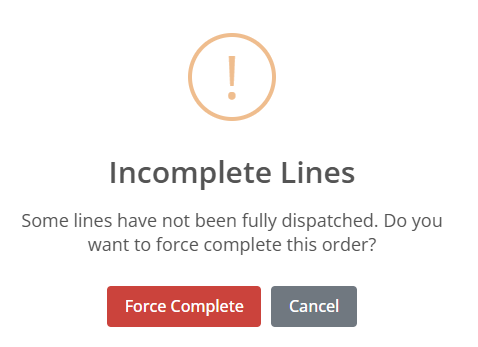
- You can choose to proceed — the order completes with whatever has been allocated.
- The shortfall is recorded against the order for reference.
This is useful when stock is temporarily unavailable and you need to ship what you have now rather than holding the entire order.
Charges
When an order is completed, handling charges are automatically generated. You can also manage charges manually:
- View charges in the Charges section of the order view.
- Add additional charges using the Add Charge button.
- Edit or remove charges — including auto-generated ones.
- Charges remain editable until the order is invoiced.
For more detail on how charges work, see Managing Handling and Storage Costs.
Quick Tips
- You don't need to print the dispatch document before completing — the two actions are independent.
- If you complete an order by mistake or need to make changes, you can reopen it (see Reopening and Cancelling Goods Out Orders).
- The dispatch PDF can be reprinted at any time, even after the order is complete.
- Documents and photos can be attached to the order for record-keeping using the Documents section.