Reopening and Cancelling Goods Out Orders
Introduction
Sometimes things change after a Goods Out order has been completed or created. You may need to reopen a completed order to make corrections, or cancel an order that is no longer needed. This guide covers both scenarios and explains what happens to stock and charges in each case.
Reopening a Completed Order
If an order has been completed but you need to make changes — for example, an allocation was incorrect or additional items need to be added — you can reopen it.
- Open the completed Goods Out order from Menu → Movements → Goods Out.
-
Click the Reopen button in the bottom-right of the order view.
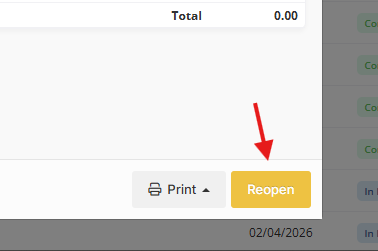
- The order is returned to Pending status and becomes fully editable again.
What happens when you reopen an order:
- The order status reverts to Pending.
- Any automatically generated charges (e.g., handling fees) are removed.
- The total charges are recalculated based on any remaining manual charges.
- Any signature captured at completion is cleared.
- Existing allocations are not affected — all dispatched and reserved items remain as they are.
Once you've made your changes, you can complete the order again as normal.
Cancelling an Order
If a Goods Out order is no longer needed, you can cancel it — but only if no stock has been dispatched yet.
- Open the order from Menu → Movements → Goods Out.
-
Click the Cancel button in the bottom-left of the order view.
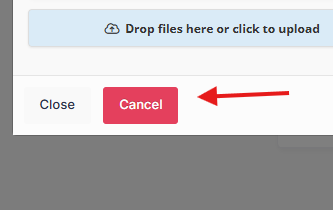
- Confirm when prompted.
Requirements for cancellation:
- The order must be in Pending status.
- No items can have been dispatched. If any allocations have been dispatched, you'll need to remove them first before cancelling.
What happens when you cancel an order:
- The order status changes to Cancelled.
- If the order was linked to a transport booking, that booking is also rejected.
- The order can no longer be edited or reopened.
- Cancelled orders remain visible in the Goods Out list for reference, filtered under the cancelled status.
Which Option Should I Use?
| Situation | Action |
|---|---|
| Order completed but an allocation needs correcting | Reopen, fix the allocation, then complete again |
| Need to add more items to a completed order | Reopen, add the items, then complete again |
| Order was created by mistake and nothing has been dispatched | Cancel |
| Customer no longer needs the shipment (nothing dispatched) | Cancel |
| Some items dispatched but order needs changes | Reopen (cancel is not available once items are dispatched) |
Quick Tips
- Reopening an order does not reverse any stock movements — dispatched items remain deducted from inventory. You would need to manually remove allocations if you want to return stock.
- Cancelled orders cannot be undone. If you cancel by mistake, you'll need to create a new order.
- If you just need to adjust charges on a completed order, you can edit charges directly without reopening — charges are editable until the order is invoiced.