Using Auto-Allocate
Introduction
If you don't need to hand-pick specific items for a Goods Out order, the Auto-Allocate feature can do it for you. It automatically selects stock using FIFO (first in, first out), saving time when the customer doesn't require specific batches. This guide also covers how to dispatch reserved items in bulk.
How Auto-Allocate Works
When you run auto-allocate on an order, the system will:
- Work through each product line that has remaining quantity to fulfil.
- Find available stock for that product, starting with the oldest items first (FIFO).
- If a line has restrictions, the restricted items are allocated first before moving on to other available stock.
- Allocate as much as possible from each item until the line is fulfilled or stock runs out.
- All allocations are automatically marked as dispatched — stock is deducted immediately.
Running Auto-Allocate
- Open the Goods Out order from Menu → Movements → Goods Out.
-
Click the Auto-Allocate button at the top of the products section.
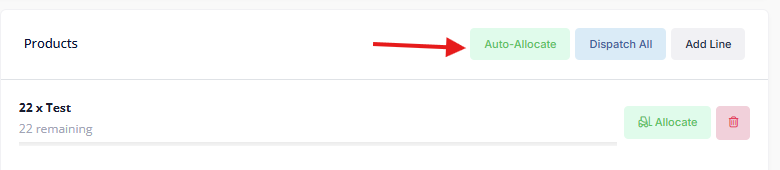
- Confirm when prompted.
- The system will allocate stock across all lines and the order will move to In Progress status.
After completion, you'll see the progress bars update on each product line showing what has been allocated.
If there isn't enough stock to fully allocate a line, the system will allocate what it can. The remaining quantity will show as unfulfilled and can be allocated manually later or left as a shortfall when completing the order.
Dispatching Reserved Items in Bulk
If you've been manually allocating items as reserved (without dispatching immediately), you can dispatch everything at once using the Dispatch All button.
- Open the Goods Out order.
-
Click the Dispatch All button at the top of the products section.
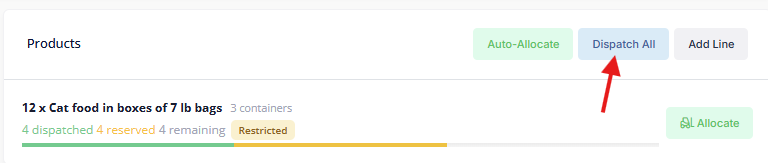
- Confirm when prompted.
- All reserved allocations across every line will be dispatched — stock is deducted and recorded in the stock ledger.
This is useful when you want to pick and stage items throughout the day, then dispatch them all at once when the vehicle arrives for collection.
When to Use Auto-Allocate vs Manual Allocation
| Scenario | Recommended Approach |
|---|---|
| Customer has no batch preference | Auto-Allocate |
| You need stock from a specific location or batch | Manual allocation |
| Large order with many product lines | Auto-Allocate to save time |
| Line has restrictions set | Auto-Allocate respects these, but manual gives more control |
| You want to reserve before dispatching | Manual allocation (auto-allocate always dispatches immediately) |
Quick Tips
- Auto-allocate can be run on an order that already has some manual allocations — it will only allocate the remaining quantities.
- If you're not happy with what was auto-allocated, you can remove individual allocations from the Edit Line view and reallocate manually.
- Auto-allocate is available on the platform only — on the warehouse app, items are allocated individually.