Processing a Repack — Output Lines
Introduction
Output lines on a repack order represent the new stock being produced. Processing an output line means creating new stock items in your inventory — these are the end result of the repack. This works similarly to receiving goods on a Goods In order, except the stock is being created from a repack rather than an external delivery. This can be done from the platform or the warehouse mobile app.
Opening the Output Line
- Open the repack order from Menu → Movements → Repacks.
- In the Outputs section, click on the output line you want to process.
- The Edit Output Line view opens, showing:
- The product name, expected quantity, and batch reference on the left.
- All created items on the right, with their batch references, item numbers, and quantities.
- Batch Reference — This is pre-filled from the repack order number. You can change it if needed as long as no items have been received yet.
Creating New Stock Items
-
From the Edit Output Line view, click Receive.
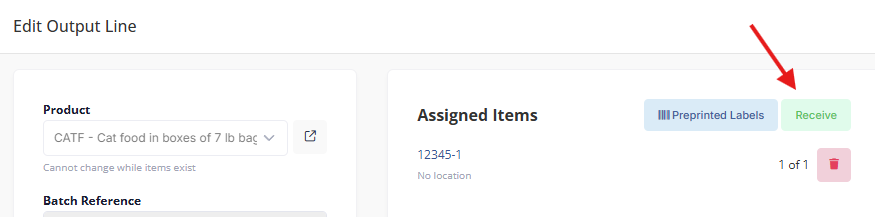
- The item creation form opens. Enter:
- Quantity — The number of inner units in this item. For example, if you're creating a box containing 50 units, enter 50.
- Click Create to confirm.
The new item is added to your inventory with:
- A unique item number (assigned sequentially within the batch, e.g., BATCH-1, BATCH-2).
- A QR code for scanning in the warehouse.
- The full quantity recorded in the stock ledger as a repack in entry.
Repeat this process to create as many items as needed to fulfil the expected quantity.
For example, if the output line expects 500 units and you're creating items of 100 units each, you would create 5 items.
Using Preprinted Labels
If your warehouse uses preprinted labels, you can assign them to output items:
- When creating an item, scan or enter the preprinted label code instead of having the system generate a new QR code.
- The item's QR code is set to the preprinted label code, so the physical label on the item matches the system.
- Any unused preprinted labels are cleaned up when the repack order is completed.
If your site has a default printer configured, new item labels can be printed automatically when items are created.
Managing Created Items
From the Edit Line view, you can see all items created on the output line:
- Each item shows its batch reference, item number, quantity, and warehouse location.
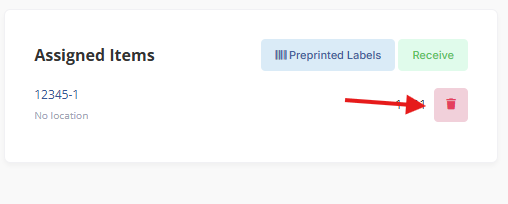
-
Remove an item — deletes it from inventory entirely. This is only possible while the order is still in progress.
Adjusting the Expected Quantity
If the amount to be produced changes:
- Update the Quantity Expected field in the Edit Line view.
- The quantity cannot be set lower than what has already been created.
- To reduce below the created amount, remove items first.
Processing on the Warehouse App
Output lines can also be processed from the mobile app:
- Open the repack order from the Repacks section on the app.
- Tap an output line to view its details.
- Tap Create Item.
- Enter the quantity for the new item.
- Optionally scan a preprinted label to assign its code to the item.
- Confirm to create the item.
The new item is immediately added to inventory and a label can be printed automatically if a default printer is configured.
Key Things to Know
- Output items become regular stock in your inventory — they can be allocated to Goods Out orders just like any other received stock.
- All stock created is recorded in the stock ledger as repack in entries.
- If the repack is cancelled, all output items are deleted from inventory and the ledger entries are reversed.
- The batch reference ties the output items back to the repack, making them easy to trace.
- Both input and output lines must be fully processed (quantity complete meets quantity expected) before the repack order can be completed.