Processing a Repack — Input Lines
Introduction
Input lines on a repack order represent the existing stock being consumed. Processing an input line means allocating specific items from your warehouse inventory to the repack. This works similarly to allocating stock on a Goods Out order — you select the items, choose quantities, and the stock is deducted from inventory. This can be done from the platform or the warehouse mobile app.
Opening the Input Line
- Open the repack order from Menu → Movements → Repacks.
- In the Inputs section, click on the input line you want to process.
- The Edit Line view opens, showing:
- The product name and expected quantity on the left.
- Any restrictions set on this line (see below).
- All allocated items on the right, with their quantities and dispatch status.
Allocating Stock to an Input Line
-
From the Edit Line view, click Add Item.
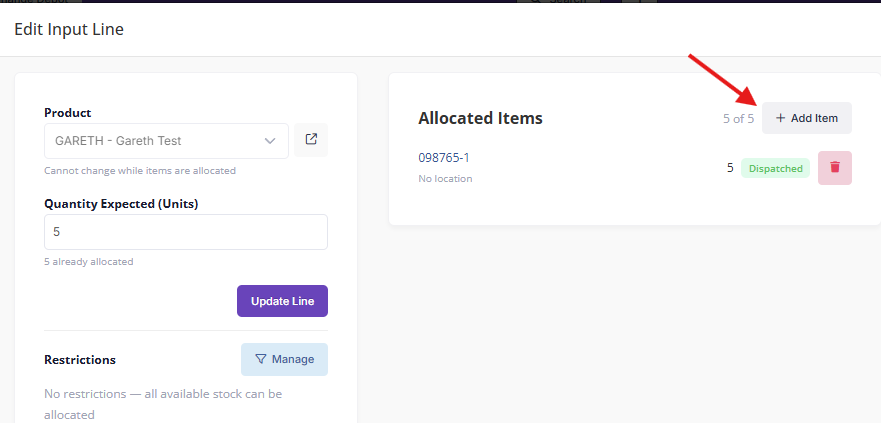
- The allocation window opens showing available stock for that product, presented in FIFO order (oldest first).
- If the line has restrictions, a Preferred Source Items section appears at the top.
- Click on the item you want to allocate from.
- Enter the quantity to consume.
- Choose whether to Dispatch immediately:
- Ticked (default) — Stock is deducted from inventory straight away.
- Unticked — The item is marked as reserved for later dispatch.
- Click Allocate to confirm.
The line's progress updates to reflect the new allocation.
Using Restrictions
If you need the repack to consume stock from specific inbound batches, you can set restrictions on an input line:
-
In the Edit Line view, click Manage in the Restrictions section.
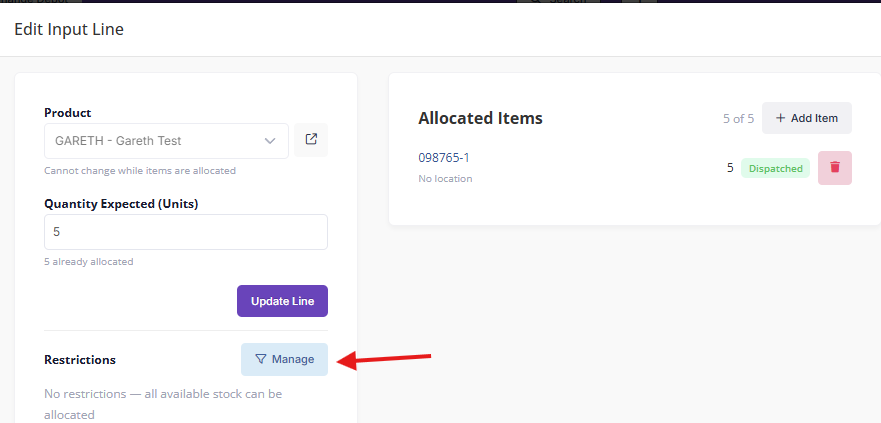
- The restriction picker shows all Goods In lines for that product with available stock.
- Enter the quantity required from each specific batch.
- Click Save.
When restrictions are set:
- Restricted items appear as Preferred in the allocation window.
- The restricted quantity must be allocated in full before other stock can be used.
- A Restricted badge appears on the line.
For more detail on how restrictions work, see Stock Restrictions.
Managing Allocated Items
From the Edit Line view, you can see all items allocated to the input line:
- Each allocation shows the item number, warehouse location, quantity, and status (Dispatched or Reserved).
- Dispatch a reserved allocation — click the Dispatch button to deduct the stock.
- Remove an allocation — removes the item from the line. If it was dispatched, the stock is restored to inventory.
Adjusting the Expected Quantity
If the amount to be consumed changes:
- Update the Quantity Expected field in the Edit Line view.
- The quantity cannot be set lower than what has already been allocated.
- To reduce below the allocated amount, remove allocations first.
Processing on the Warehouse App
Input lines can also be processed from the mobile app:
- Open the repack order from the Repacks section on the app.
- Tap an input line to view its details.
- Tap Allocate Item and scan the warehouse item's QR code.
- The app verifies the scanned item matches the expected product and checks any restrictions.
- Enter the quantity and confirm.
The same restriction rules apply — if restrictions are set, restricted items must be scanned first.
Key Things to Know
- Input lines work the same way as Goods Out allocation — the system uses the same underlying process for selecting and deducting stock.
- All stock movements are recorded in the stock ledger as repack out entries.
- If the repack is cancelled, all input allocations are reversed and stock is restored.
- You can allocate from multiple items to fulfil a single input line.
- The order moves to In Progress automatically when the first allocation is made.