Prestart Checks in the Driver's App
The TransMaS app allows drivers to quickly and easily complete daily vehicle and trailer checks and report any necessary faults.
Important Note: Plus Feature Requirement
The Walkaround System is an exclusive Plus feature. To gain access to this functionality, please contact our team to upgrade your account to Plus.
Overview of main checks screen
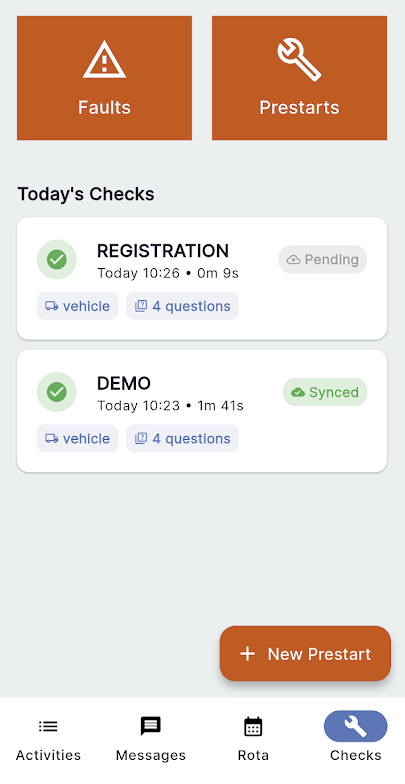
- Top Bar: Displays two clickable boxes:
- Faults: Tap here to view all open faults you have previously recorded. If a fault is resolved, you can tap on it to open it and mark it as resolved.
- Prestarts: Tap here to view all checks you have recorded from the last 14 days.
- Middle Section: Shows a list of all checks completed today. Any that still need to be submitted to the system will say "pending."
- Bottom Right: A button to start a new check or continue a saved one.
How to do a prestart check
Follow these steps to start and complete a new prestart:
-
Go to the Checks tab of the app.
Tap the button at the bottom right to select New Prestart.
Select Resource: Choose the vehicle or trailer the precheck is for from the drop-down menu.
- If multiple checklists are available for the selected resource, the checklist field becomes a drop-down, allowing you to select the specific checklist you need to complete.
- Enter Odometer Reading: If the checklist requires it, enter the current Odometer reading (Odo). If the box is not present, the reading is not required for this checklist.
- Click Start check.
-
This brings you to the prestart check summary. Tap your resource/asset to start completing the checklist.
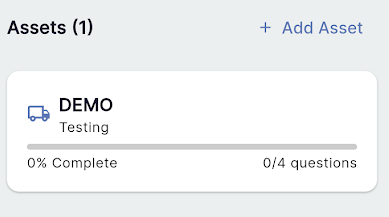
- If you answer No to any yes/no questions, this will record a defect (fault). You will then be prompted to add any comments or add a photo.
- When all questions for the resource are complete, you will see a prompt asking if you wish to Stay Here or Return to Summary.
- If you select Stay Here, you must press the back button when you're done editing to navigate back to the Summary Screen.
- Once you are on the Check Summary Screen and all asset checklists are complete, tap the Green Sign to Complete box in the lower right corner to submit the precheck.
- Once it is signed complete, there is a blue Submit Check button to upload the check to the system.
Handy features available on the checklist:

- Time indicators: On the top right, you see the total time you have spent with the checklist open. Above each question, you can see the time it was completed.
- Flashlight Icon: Tap this to turn your phone's flashlight on or off.
- Back Button: Pause and continue later. This returns you to the Check Summary Screen.
Doing a check for multiple assets
- On the Check Summary Screen, you can tap Add an Asset to include another vehicle or trailer in the same precheck. You can only add an asset to a precheck once, even if it has multiple available checklists.
- To remove an asset/resource from a precheck, long-press on its entry and select Remove.
Cancel a prestart
- If all assets are removed, or if you tap the 'X' in the top right of the summary screen, the entire precheck will be cancelled.