Managing Faults & Prechecks (TransMaS Plus)
The Walkaround System enables drivers to complete their daily vehicle checks (prechecks) and report any faults directly from their mobile device. All results and reported faults are then sent to the main system for review and processing.
- Setup: Read this article to learn how to get set up for prechecks.
- Driver Training: Show your drivers this article on how to complete prechecks.
Important Note: Plus Feature Requirement
The Walkaround System is an exclusive Plus feature. To gain access to this functionality, please contact our team to upgrade your account to Plus.
Faults Dashboard
The Faults Dashboard provides a high-level overview of all active issues.
Across the top, four summary boxes display critical metrics: summary information: total open faults, total open/in progress critical faults, assets off road (VOR), and faults in progress.

Below the summary, you'll find a listing of all Open and In Progress faults.
- Click on any fault to view more information.
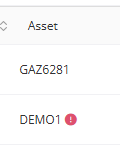
- Vehicle Off Road (VOR): A red exclamation mark (!) next to the asset name indicates that VOR is required.
Manual Fault: You can add a manual fault at any time using the button in the top right corner.
Faults Listing Screen
This screen shows all faults based on the filters you set at the top.
The screen defaults to showing all faults within the last month. You can refine this by:
- Filtering by Date Range, Status, Severity, or Asset Type
- Search: Use the search bar for any visible information, such as the asset name, reporting driver, or related question.

Faults progress through four possible statuses:
| Status | Definition | Note |
| Open | A fault that has been found and is awaiting action. | All new faults start here. |
| In Progress | Work is currently being done to resolve the fault. | Can be reverted to Open or marked Resolved. |
| Resolved | The fault is completely fixed. | Status cannot be changed. |
| Suppressed | The fault is acknowledged, but no action is planned. | Requires a reason for suppression. Status cannot be changed. |
Fault Detail View
Clicking into a fault provides a comprehensive view of all relevant information and activity.
- Basic Info: Includes the asset, severity, reporting driver, reported date, related check question, and description.
- Activity Timeline: Tracks all status changes, the reason provided for the change (if applicable), and timestamps.
- Linked Prestart Responses: This section shows all prechecks that generated or were reported while this fault was active.
- It includes the date, time, response, and whether there are photo attachments.
- Clicking on a response allows you to view the full prestart check.
- Note: This box will be absent if the fault was created manually.
Available Actions
- Change Status: Only available if the current status is Open or In Progress.
- Edit Severity: Only available if the current status is Open or In Progress.
- Upload Documents: Add relevant documentation like photos, invoices, or repair reports.
- Download PDF: Get a printable summary of the fault information.
Precheck Listing
This screen shows all completed prechecks for a specified date range (default is one month).
- Filtering: Can be filtered by date range or searched.
- Quick View: You can see the date/time, driver, asset, checklist used, Pass/Fail status, and location.
- Fault Highlight: Any prechecks that generated a fault are highlighted in red.
Prestart Check Detail Screen
Click the view icon to open the full detail screen.
- Extended Info: See the basic info plus the check's start and end time, total duration, a map view of the location, and the driver's signature.
- Question Responses: All answers from the checklist are displayed with a timestamp.
- Visuals & Documents:
- Pictures taken during the check will have a clickable thumbnail for a larger view.
- You can Download a PDF summary of the responses.
- Any linked faults are indicated, and you can click View Defect to jump directly to the Fault Detail View.