4. Monitoring & the Driver App
Part 4 of 8: Getting Started with TransMaS
This article is part of a series designed to take new users through the full lifecycle of an order.
In this article: We look at the live portion of the job: how drivers interact with the mobile app to record timestamps and signatures, and how you can monitor their progress in real-time via the Traffic Sheet.

Once schedules are confirmed, the work moves from the planning stage into the hands of your drivers. As drivers execute their routes, the system captures real-time updates from the road, providing the office with visibility of the job's progress. Once all parts of an order have been delivered, its status will change to Complete.
4.1 The TransMaS Driver App
The TransMaS Driver App enables your team to see and complete their work in real-time, replacing paper manifests with a digital workflow.
- Setup & Login: Download the app from the Apple App Store or Google Play Store. To log in, the driver will need:
-
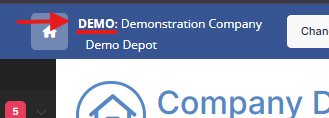
Company Code: Found at the top left of your TransMaS desktop screen.
- Driver PIN: A unique code located under the Drivers or Suppliers section in your Settings. (Settings > Drivers > Pin Code column.)
-
- Drivers receive their confirmed schedules, navigate to locations, and record arrival/departure timestamps.
- The app captures digital signatures (which generates an ePOD), takes photos of paperwork or cargo, and allows drivers to record actual weights/quantities.
- Learn more: TransMaS Driver App Features
- Plus features: If you subscribe to Plus, drivers can also do their walkaround checks and request absences from the app. Learn more about Plus.
Communication & Messaging: You can stay in contact with your drivers in two ways:
-
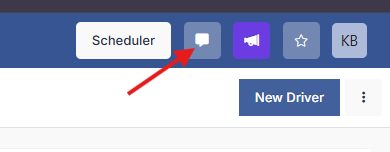
Messaging: A built-in chat system for sending simple text messages back and forth between the office and the driver - accessed via the message button at the top of every screen.
- Instructions: Use this for operational activities that aren't part of a standard order. This includes Standard Instructions (like picking up or dropping a specific trailer/vehicle), Free-type Instructions for one-off tasks, or Predefined Instructions for tasks you reuse frequently. Learn more at Adding Instructions for Drivers.
4.2 The Traffic Sheet
The Traffic Sheet provides a high-level view of every active driver and their current status without you needing to refresh the page. It is accessed under Scheduling in the sidebar.
-
Live Status & ETAs: See where drivers are. The system uses colour-coding to alert you if a driver is running late (Red ETA) or has been on-site too long (Red/yellow clock timer).
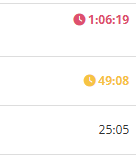
Time on site 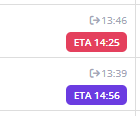
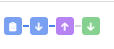
Departure times + ETAs - Activities Progress: colourful icons track progress for each activity (instruction, collection, or delivery) and you can hover over each for more details. Click into any line to pull up the schedule detail view to view all information and a map of where the driver is.
- Profit & Loss: View estimated revenue and P/L for each active driver.
- Learn more: Traffic Sheet Explained
While the Traffic Sheet is the most common tool for live status and ETAs, also check out these planning views available in the Scheduling menu:
- The Planner Diary: A comprehensive 4-day view of all assigned work. It lists every location and activity for your drivers and shows their availability based on their set shift patterns or recorded absences.
- Today’s Planner: A streamlined, horizontal view of the day. Each driver is listed with their jobs displayed in sequence (1st through 4th). Each job is colour-coded so you can see at a glance if it is Confirmed (Green), Collected (Red), or Completed (Blue), updating automatically as drivers move through their day.
4.3 Finishing the Job: Completion
An order's journey through the live execution phase ends when it reaches a status of Complete. This is the trigger that tells the system the order is ready for the final stages of confirmation and invoicing.
Completion via the Mobile App (Recommended): The preferred way to finalize a job is through the TransMaS Driver App. This ensures real-time visibility and captures evidence automatically. Completion occurs at the final delivery point:
- Arrival: The driver records their arrival on-site.
- Verification: They enter the actual quantities delivered.
- Signature: Once the delivery is signed for and the driver departs, the order is marked as Complete. Note: On multi-consignment orders, the status updates to Complete once the final delivery leg is finalized.
Manually Completing an Order: You can also manually complete orders from the office. This may be preferred if you haven't set up your drivers on the app yet or are testing the system before going live,
- Open the Order: Navigate to the specific order you wish to finalize.
- Complete: Click the Complete button in the bottom right corner of the screen.
Tip: To quickly find all uncompleted work, go to Orders > Order Search and filter by the statuses New and Allocated. You can use the M key to multi-select and complete orders in bulk.
Next Step: As drivers complete their stops, the system begins collecting data and signatures. Learn how to manage that paperwork and how to keep your customers informed with automated updates. Continue to Part 5: Documents & Notifications