Managing Zones
Zones represent storage areas within your warehouse — think of them as aisles, bays, racks, or any physical area where stock is kept. When goods are received, they can be "put away" into a zone so you always know where to find them.
Viewing Your Zones
- Go to Stores → Settings → Zones.
- You'll see a list of all zones, showing the zone code, name, which site it belongs to, and how many items are currently stored there.
- Use the filter tabs to switch between Active and Archived zones.
Creating a New Zone
- Click the New Zone button.
- Fill in the following fields:
- Code (required) — A short code for the zone using letters and numbers only, e.g. "A1", "RACK03", "COLD01". This will be converted to uppercase automatically.
- Name (required) — A descriptive name, e.g. "Aisle A - Bay 1" or "Cold Storage Unit 1".
- Site (optional) — The site this zone belongs to. If you only have one site, it may be pre-selected.
- Click Save to create the zone.
Each zone is automatically assigned a QR code when created. This QR code can be used with the warehouse mobile app to quickly identify locations when putting away or picking stock.
Printing Zone Labels
You can print labels for your zones to stick up in the warehouse, making it easy for staff to identify storage areas.
- Open a zone from the list.
-
Click the Print Label button (bottom right).
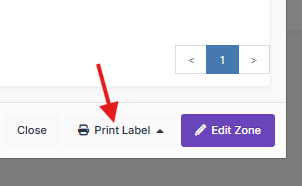
- If you have PrintNode set up, the label will be sent directly to your printer. Otherwise, a PDF will be downloaded that you can print yourself.
The label includes the zone code, name, and QR code.
Editing a Zone
- Click on a zone in the list to open it.
- Click the Edit Zone button (bottom right).
- Make your changes and click Save.
Archiving a Zone
- Open the zone you want to archive.
- Click the three-dot menu (⋮) and select Archive.
- Confirm the action.
Archived zones won't appear in location dropdowns when receiving goods, but existing stock in that zone will still show the zone reference. You can restore a zone by editing it and saving it again.
Tips
- Keep zone codes short and logical — your warehouse team will see these on labels and in the mobile app.
- Print and display zone labels throughout the warehouse so staff can quickly scan them with the mobile app when putting stock away.
- Create zones for any distinct storage areas, including temporary staging areas or quarantine zones if needed.