Completing a Goods In Order
Once all goods have been received (or as many as you're going to get), you complete the order to finalise it and generate any handling charges.
Orders can be completed from the web platform or via the warehouse mobile app.
Checking Completion
Before completing, you can check whether all expected quantities have been received:
- Open the Goods In order.
- Look at the progress bars on each product line — fully received lines will show as complete.
- Click Complete when you're ready.
What Happens When You Complete
The system will check whether all lines have been fully received.
If everything matches:
- The order status changes to Completed.
- Handling charges are automatically generated based on the product costing rates you set up in Stock settings.
- The order is ready for invoicing.
If there are incomplete lines:
-
You'll see a summary showing which products have outstanding quantities (e.g. "Expected 100, received 85").
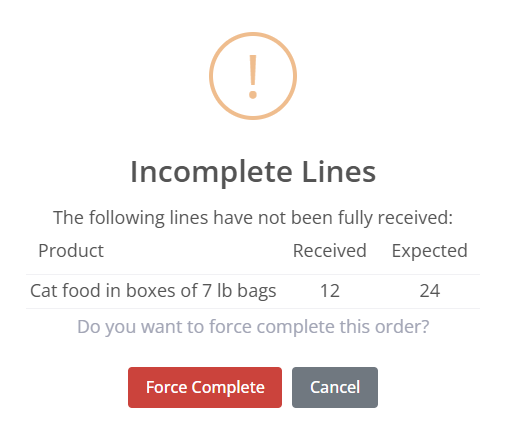
- You can choose to complete anyway if you're not expecting any more deliveries for this order.
- Or go back and receive the remaining items first.
Charges
When an order is completed, the system automatically generates handling charges based on the costing rates configured on each stock product:
- Goods In rate — Applied per outer, per inner, or as a fixed charge depending on how the product is configured.
- These charges appear in the Charges section of the order.
- You can also add manual charges if needed (e.g. for special handling).
For more details on setting up costing rates, see the Managing Handling and Storage Costs article.
Tips
- You can complete an order even if not all expected quantities have been received — the system will warn you but won't stop you.
- Check the auto-generated charges after completing to make sure they look right.
- If something isn't right after completing, you can reopen the order (see the Reopening or Cancelling a Goods In Order article).