Reopening or Cancelling a Goods In Order
Sometimes you need to undo a completion or cancel an order entirely. Here's how both work.
Reopening a Completed Order
If you've completed an order but need to make changes — perhaps more stock has arrived, or the charges need adjusting:
- Open the completed Goods In order.
-
Click Reopen.
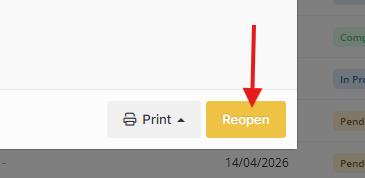
- The order will be set back to In Progress (if items have been received) or Pending (if no items were received).
When you reopen an order:
- All automatically generated charges are removed. Any manual charges you added are kept.
- You can receive additional items, edit lines, or make other changes.
- When you're ready, complete the order again to regenerate the charges.
Cancelling an Order
If a delivery is no longer expected and you want to cancel the order:
- Open the Goods In order.
-
Click Cancel.
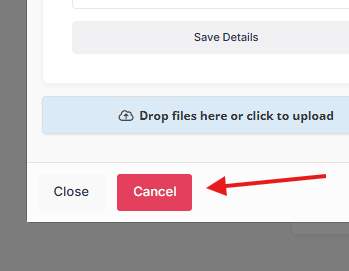
- Confirm the cancellation.
Important: You can only cancel an order if no items have been received against it. If items have already been received, you'll need to deal with those first.
Once cancelled, the order status changes to Cancelled and it can no longer be edited or received against.
Tips
- Use Reopen rather than cancelling if you just need to make corrections — it preserves all your received items and manual charges.
- If you reopen and re-complete, the auto-generated charges will be recalculated based on the current costing rates and quantities.