Creating a Goods In Order
A Goods In order tracks an expected delivery of stock into your warehouse. You create one for each inbound shipment so your team knows what's coming and can receive it when it arrives.
How to Create a Goods In Order
There are two ways to create a Goods In order:
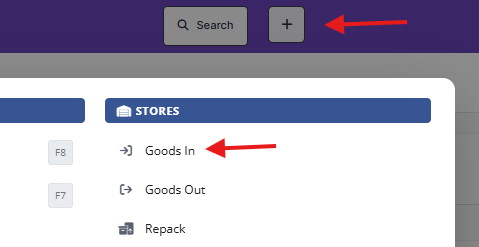
- From the menu — Go to Movements → Goods In, then click the Create New button.
-
Quick create — Use the quick create shortcut (+ button in top bar) from anywhere in the Stores module.
Order Details
When creating a new order, you'll see a form with the following fields:
- Site — Select the warehouse site where the goods will arrive. If you only have one site, it may be pre-selected.
- Customer (required) — Choose the customer this delivery is for. Only customers set up for Stores will appear.
- Reference (optional) — Add a reference number, such as the customer's PO number or booking reference.
- Origin (optional) — Where the goods are coming from. Start typing to search, or press F2 to search the existing location index.
- Expected Date (required) — The date you expect the delivery to arrive. Defaults to tomorrow.
- Notes (optional) — Any additional information about this delivery. These notes are visible to warehouse operators on the mobile app, so use them to pass on any useful instructions or details about the delivery.
Adding Products
At least one product line is required to create the order.
- Click Add Inbound Product to add a line to the order.
- For each product line, you'll need to provide:
- Product — Search and select the stock product being delivered.
- Quantity — How many units you're expecting.
- Batch Reference (optional) — A batch or lot number if applicable.
- You can add as many product lines as needed. Each line represents a different product in the delivery.
Booking Details (Optional)
If you know the haulier or driver details for the delivery, expand the Booking Details section to record:
- Haulier — The transport company making the delivery.
- Vehicle Registration — The vehicle reg number.
- Driver Name — The name of the driver.
- ETA — Expected time of arrival.
These are purely informational and help your warehouse team prepare for the delivery.
Saving the Order
Click Save to create the order. It will be given a unique order number (e.g. GI-001) and set to Pending status, meaning it's waiting to be received.
The order will now appear in the Goods In list, ready for your team to receive when the delivery arrives.
Tips
- You can attach documents (such as delivery notes or purchase orders) to the order after creating it using the upload option on the order view.
- If you need to make changes after creating, you can edit the order details and add or remove product lines at any time while it's still in Pending status.