Putting Away Stock
After goods are received into your warehouse, they need to be assigned to a storage location — this is called "putting away". Items can be put away during receiving or as a separate step afterwards. This article covers both approaches.
Put Away During Receiving
The quickest way to put away stock is during the receiving process itself. When you receive items against a Goods In order, you can assign a location at the same time:
- Open the Goods In order and click Receive on a product line (or Receive All for all lines).
-
In the receiving form, tick Put Away to Location.
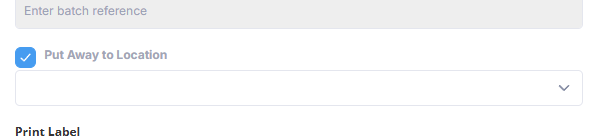
- Select the zone from the dropdown — this shows all zones at the order's site.
- Click Save.
The item is created and immediately assigned to the selected zone. A stock ledger entry is recorded for both the goods in and the put away.
For full details on receiving, see Receiving Goods.
Put Away After Receiving
If items were received without a location (the location was left blank during receiving), they'll need to be put away separately. These items show as "Unassigned" in the location field.
To find items that need putting away:
- Go to Inventory → Pending Items
- This shows a list of all items not put away yet, with their item no., description, customer, order no., quantity, and date received.
-
Click the Put Away button at the end of a line.
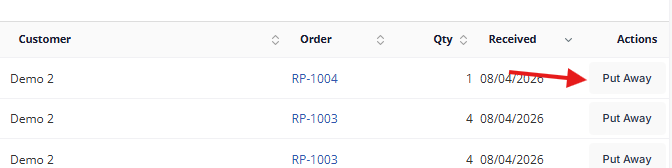
- Select a zone from the Location drop down menu.
- Click Put Away.
Putting Away an Individual Item
- Open the stock item (from a drilldown, order view, or by scanning its QR code).
-
Click the Put Away button.
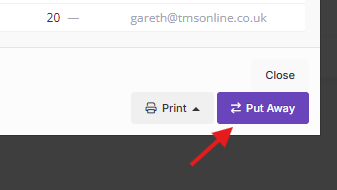
- A modal will appear showing all available zones at the item's site.
- Select the zone where the item has been physically placed.
- Click Save.
The item's location is updated and a Put Away entry is recorded in the stock ledger.
What Gets Recorded
Every put away action creates a stock ledger entry showing:
- The date and time of the action.
- The movement type (Put Away).
- The zone the item was placed in.
- Who performed the action.
You can view the full history of an item's movements in the Stock Ledger section at the bottom of the item detail view.
Using QR Codes
Each stock item and warehouse zone has a unique QR code. When using the warehouse mobile app, you can scan the item's QR code to open it, then scan the zone's QR code to put it away — making the process fast and hands-free.
Tips
- If you're receiving a large delivery and don't know locations yet, you can receive first and put away later. Items are still counted as available stock even without a location.
- Items with zero quantity cannot be put away or moved — the Put Away button is disabled for fully consumed items.
- You can also move items that have already been put away to a different zone — see Managing a Stock Item for details on moving stock.