Setting Up Storage Billing and Invoicing
TransMaS can automatically generate periodic storage charges for stock held in your warehouse and include them in customer invoices. This article covers how to configure a customer's storage billing settings and how to review and invoice storage charges.
For details on setting up per-product costing rates (the rates used to calculate charges), see Managing Handling and Storage Costs.
Configuring Storage Billing on a Customer
Storage charges are generated automatically based on a billing schedule configured on each customer profile.
- Go to Settings → Customers.
- Open the customer profile.
- Switch to the Stores Charges tab (this tab only appears for customers marked as a stores customer).
You'll see the following settings:
| Setting | What It Does |
|---|---|
| Billing Period | How often storage charges are generated. Options: Weekly, Fortnightly, or Monthly. Leave blank for no automatic storage charges. |
| Anchor Day | The day the billing period starts from. For weekly billing, this is the day of the week (Monday–Sunday). For fortnightly or monthly billing, this is the day of the month (1–28). |
| Nominal Code | The accounts nominal code to use when invoicing storage charges for this customer. If left blank, the company default is used. |
| VAT Code | The VAT code to apply to storage invoices for this customer. If left blank, the company default is used. |
| Combine with Transport Invoice | When ticked, storage charges will be included on the same invoice as transport charges rather than being invoiced separately. |
How Charges Are Generated
Once a billing period and anchor day are set, TransMaS automatically generates storage charges at the end of each billing period. The system:
- Looks at all stock held for the customer during the period — including any items that were dispatched during the period.
- For each product, calculates the charge using the product's storage costing type and rate (configured in Stock settings).
- Creates a storage charge record with a line for each product.
Generated charges start in Pending status, giving you a chance to review and adjust before invoicing.
Reviewing Storage Charges
- Go to Stores → Storage Charges.
- Use the Uninvoiced tab to see pending charges ready for review.
Each entry shows the customer name, billing period dates, number of product lines, total amount, and status. Click on a charge to see the full breakdown.
The detail view shows each product line with:
- Product Code and Name
- Costing Type — How the charge was calculated (Per Inner, Per Outer, Fixed Per Line, or None).
- Item Count — The number of individual stock items held during the period.
- Quantity — The calculated quantity based on the costing type.
- Rate — The per-unit rate applied.
- Amount — The total charge for this product line (Quantity × Rate).
Editing a Pending Charge
If a charge doesn't look right — for example, the costing type or rate needs adjusting — you can edit it before invoicing:
-
Open the pending storage charge.

- On the product line you want to change, update the Costing Type or Rate.
-
Click the tick icon at the end of the line to recalculate.
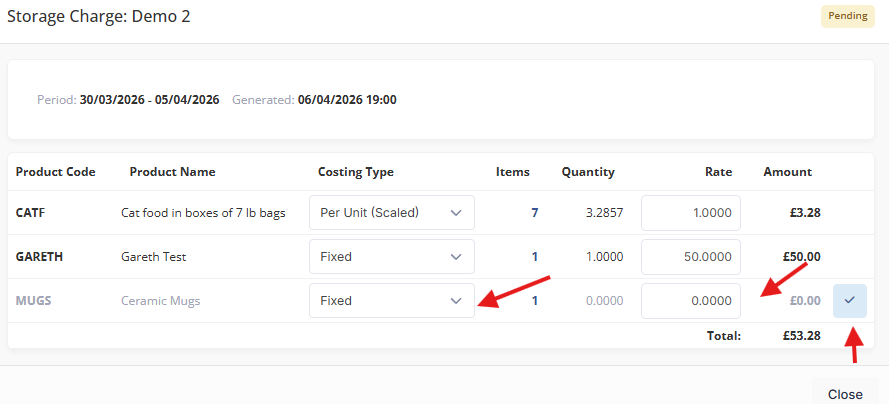
The quantity and amount will be recalculated based on the new settings. The overall total updates automatically.
To remove a product line entirely, click the bin icon. To remove the entire charge for the period (for example, to regenerate it after fixing product rates), delete the storage charge — it will be regenerated on the next billing cycle.
Invoicing Storage Charges
Once you're satisfied with a storage charge, you can include it in a customer invoice through the Accounts module:
-
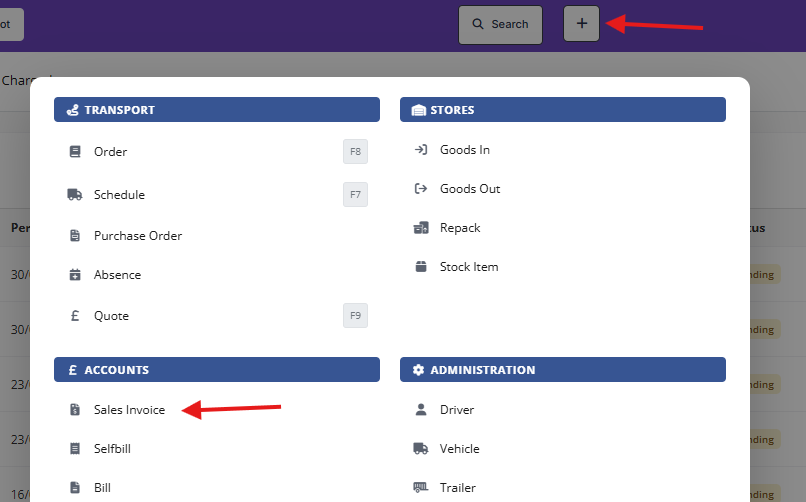
Go to create New Sales Invoice (create menu or button at top right of invoicing screens).
- Select the desired customer.
- Pending storage charges will appear as available items to include on the invoice.
- Add the storage charge to the invoice and complete it as normal.
After invoicing:
- The storage charge status changes to Invoiced.
- An invoice number link is shown on the charge.
- The charge becomes read-only — amounts are frozen and can no longer be edited.
You can view invoiced charges on the Charged tab in Stores → Storage Charges.
Portal Visibility
Invoices for storage charges will show in the invoices section of the customer portal.
Tips
- Set up your product costing rates before configuring the customer's billing period — charges are calculated using whatever rates are configured at generation time.
- Review pending charges promptly. If you spot an issue, it's easier to fix before invoicing than after.
- Storage charges include stock that was dispatched during the period — customers are billed for the time stock was held, even if it's since left the warehouse.
- The anchor day determines when your billing periods start. For monthly billing, setting the anchor to 1 means periods run from the 1st of each month.
- Use the Combine with Transport Invoice option if your customer prefers a single invoice covering both transport and warehousing services.