Viewing Stock Status on the Customer Portal
The Stock Status screen on the customer portal gives your customers a real-time view of all stock held in your warehouse on their behalf. It works just like the internal Live Stock screen but is filtered to show only the customer's own products.
This article is intended to be shared with your customers to help them use the portal.
Accessing Stock Status
- Log in to the customer portal at portal.transmas.net.
-
Open the menu and select Stock Status under the Stores section.
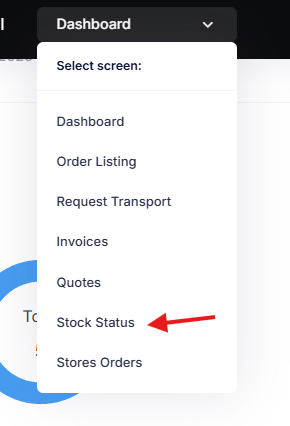
You'll see a table listing every active product held in the warehouse for your account.
Understanding the Columns
Each row represents a single stock product. The columns show:
| Column | What It Shows |
|---|---|
| Product Code | The product SKU or identifier. |
| Name | The product description. |
| Account | The customer account name. This column only appears if you have access to more than one account. |
| Incoming | The total quantity expected from inbound orders that haven't been fully received yet. |
| Available | The total quantity currently held in the warehouse and available for use. |
| Allocated | The total quantity reserved for outbound orders but not yet dispatched. These items are still in the warehouse but committed to upcoming shipments. |
| Required | The total outstanding quantity needed to fulfil pending outbound orders that haven't been allocated yet. |
Filtering the View
By default, products with no stock activity (all zeros) are hidden. To show all products including inactive ones, untick Hide products with no stock activity.

Use the search box to quickly filter by product code or name.
Drilling Down into the Numbers
Any quantity shown in blue is clickable. Clicking a number opens a detailed breakdown showing exactly what makes up that figure.
Incoming
Shows the individual inbound order lines contributing to the incoming total:
- Order — The order number, with a badge showing the order type (In or Repack).
- Reference — The order reference.
- Date — The order date.
- Expected — How many units were ordered.
- Received — How many have been received so far.
- Remaining — The outstanding quantity still to arrive.
Click on a row to view the full order details.
Available
Shows every individual stock item currently in the warehouse for this product:

- Order — The inbound order the item was received on.
- Item No. — The unique item identifier (batch reference and item number).
- Received — The date the item was received.
- Location — The warehouse zone where the item is stored, or "Unassigned" if it hasn't been placed yet.
- Quantity — The current quantity remaining in this item.
Allocated
Shows items that have been picked for outbound orders but not yet dispatched:

- Order — The outbound order number, with a badge showing the order type.
- Item — The specific stock item allocated.
- Batch — The batch reference.
- Allocated Qty — How many units are allocated from this item.
Click on a row to view the full order details.
Required
Shows the outbound order lines that still need stock to be allocated:

- Order — The outbound order number, with a badge showing the order type.
- Reference — The order reference.
- Date — The order date.
- Expected — How many units are needed in total.
- Dispatched — How many have been dispatched so far.
- Remaining — The outstanding quantity still required.
Multiple Accounts
If you have access to more than one customer account, the Account column is shown so you can see which account each product belongs to. You can use the search box to filter by account name.
Tips
- The Available column is the key number — it shows what's actually in stock and ready to be dispatched right now.
- If Allocated is high, it means stock has been reserved for outbound orders that are being processed. These items will leave the warehouse soon.
- Check Incoming to see what deliveries are expected — useful for planning ahead.
- Click any blue number to drill down and trace it back to specific orders and items.