Requesting Transport for a Stores Order
Introduction
When a Goods In or Goods Out order needs a vehicle for collection or delivery, you can request transport directly from the order. This creates a transport booking request that your transport team can review, approve, and schedule. This guide covers how to request transport, track its status, and manage bookings for both inbound and outbound orders.
How Transport Requests Work
A transport request links your stores order to the transport management system. When you submit a request:
- A pending order is created in the transport system for your transport team to review.
- Your transport team can accept or reject the request.
- Once accepted, a transport order is created and a vehicle is allocated.
- Booking details (driver, vehicle, ETA) are automatically synced back to your stores order.
Requesting Transport
- Open a Goods In or Goods Out order.
-
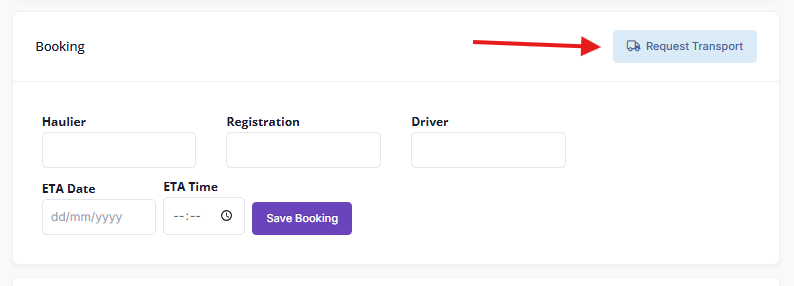
In the Booking section, click Request Transport.
- The transport request form opens with two sections:
Locations (left side)
-
For Goods In orders: Enter the collection address (where the goods are being picked up from). The delivery address is automatically set to your warehouse site.
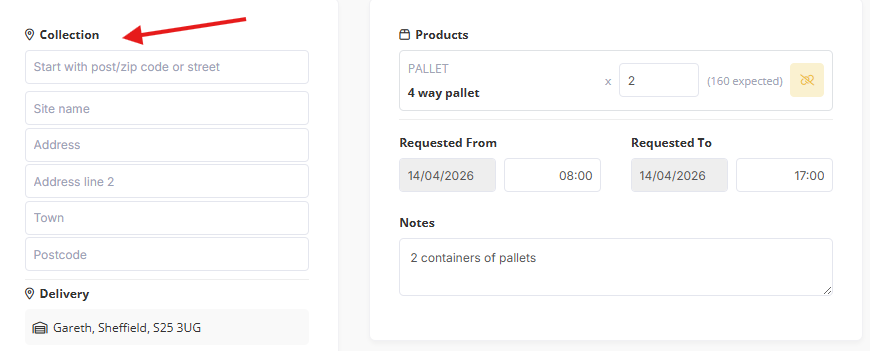
- For Goods Out orders: Enter the delivery address (where the goods are being sent to). The collection address is automatically set to your warehouse site.
- Start typing an address to use the address lookup, or enter the details manually (name, street, town, postcode).
Products, Date & Notes (right side)
-
Products — Each product line from the order is listed with a quantity field. Quantities are calculated automatically but can be adjusted if needed. Products that are linked to a transport product show a green link icon; unlinked products show a yellow link icon and can be linked manually.
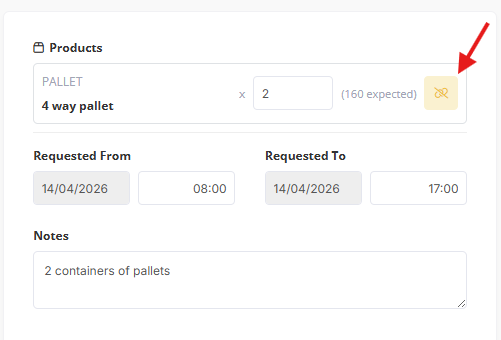
- Requested Date/Time — Set the date and time window for the transport (e.g., collect between 8:00 and 17:00). Defaults to the order's expected date.
- Notes — Any additional instructions for the transport team. Pre-filled with the order notes if set.
Click Submit Request.
Tracking Transport Status
Once a request is submitted, the Booking section on the order shows the current status:
| Status | Meaning |
|---|---|
| Awaiting Approval (yellow) | The request has been submitted and is waiting for your transport team to review it |
| Rejected (red) | The request was declined — you can retry with updated details |
| Accepted (green) | The request was approved and a transport order has been created |
| Allocated (blue) | A vehicle and driver have been assigned |
| Complete (green) | The transport has been completed |
When a vehicle is allocated, the booking details on your stores order are automatically updated with the driver name, vehicle registration, haulier, and ETA.
Retrying a Rejected Request
If your transport request is rejected:
- The previous request is cleared.
- Re-enter the details as needed (e.g., different date, adjusted quantities) and resubmit.
Manual Booking
You also have the option to enter booking details manually without going through the transport request process. This is useful when transport is arranged externally or directly with a haulier.
- Open the order.
- In the Booking section, enter the details:
- Haulier — The transport company.
- Registration — The vehicle registration number.
- Driver — The driver's name.
- ETA — Expected time of arrival for collection.
- Click Save Booking to save.
This sets the booking details on the order without creating a transport request.
Key Things to Know
- Your warehouse site must have a linked transport location configured for transport requests to work. This is set up by your administrator. See more: Managing Sites
- Transport requests can only be made when the order is in Pending or In Progress status.
- An order can only have one active transport request at a time.
- If a transport request is rejected, the booking details (driver, registration, etc.) are automatically cleared.
- Booking details are kept in sync automatically — when your transport team updates the load, the changes are reflected on your stores order.