Understanding Absence Allowances
Every driver and office staff member has a yearly leave allowance, and TransMaS tracks how much of it has been booked and how much is left. This article explains how the numbers are worked out and where to set them - useful when a figure on the summary screen does not look right at first glance.
How the total is calculated
A person's allowance for a year is:
Base days + brought forward - paid
- Base days - their standard annual entitlement.
- Brought forward - days carried over from the previous year.
- Paid - days paid out rather than taken.
The system does not work out Brought Forward and Paid for you, because not everyone's leave rolls over and the paid amount can differ from what was planned. Update these figures once a year for each person.
Only absences whose reason has Counts as Annual Leave ticked use up the allowance - sickness and other reasons are tracked separately. Half days count as 0.5.
Reading the summary screens
Under Absence in the left-hand menu, the Driver Summary (and, on TransMaS Plus, the Office Summary) shows one row per person:
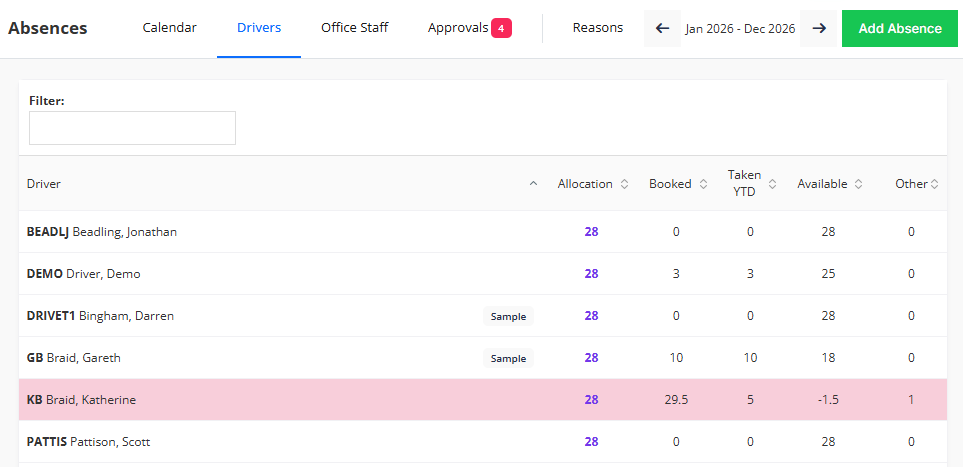
- Allocation - the calculated total above.
- Booked - approved annual leave for the year, whether taken yet or not.
- Taken YTD - the booked days that have already passed.
- Available - Allocation minus Booked.
- Other - days recorded under reasons that do not count as annual leave, such as sickness.
Anyone who has booked more than their allocation is highlighted in red. On TransMaS Plus, a request still waiting for approval is not counted in Booked - the figures move when it is approved.
Where to set allowances
For drivers, either:
- On the Driver Summary, click the driver's Allocation figure and fill in Base Days, Brought Forward and Paid, or
- Open the driver's profile (Settings > Drivers) and use the Absence allowance card on the Roster tab, which shows the current and next year side by side.
For office staff (TransMaS Plus), open the staff member from Settings > Office Staff and use the Absences card on their Roster tab.
The absence year
Your leave year does not have to run January to December - TransMaS supports an absence year starting in any month, and the summary screens are labelled with the months they cover (for example Apr 2026 - Apr 2027). If your leave year is wrong, contact TransMaS support to have the start month changed.
Common questions
A driver's Available figure has not changed after I added an absence. Two usual causes: the absence reason does not count as annual leave, or on TransMaS Plus the request is still pending - it only counts once approved.
What is the difference between Booked and Taken YTD? Booked is all approved annual leave for the year; Taken YTD is the part of it that has already happened. Early in the year Booked is usually higher than Taken.
Can drivers see their own allowance? Yes - on TransMaS Plus the Rota tab of the driver app shows their allocated, booked and available figures for the current and next leave year. See Requesting an Absence from the App.
Do half days work? Yes - a half day uses 0.5 of a day from the allowance.
Someone's allocation shows a default figure I never set. New staff start with a standard default until you set their real entitlement - update it from the summary screen or their profile.
Related
- Managing Driver Absences - adding and viewing absences.
- Managing Office Staff and Absences - office staff allowances on TransMaS Plus.
- Absence Approvals - why pending requests are not counted yet.