Absence Approvals (TransMaS Plus)
With TransMaS Plus, every new absence goes through an approval process - whether it was added manually in the office or requested by a driver from the app. This article covers who can approve, how requests reach the right person, and what happens when you approve or reject.
Setting approval permissions
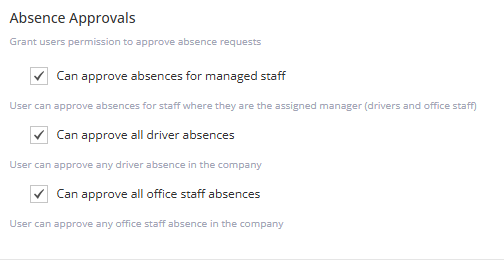
First, decide which users are allowed to approve absences.
- Go to Settings, then under Management select Users.
- Open the user and go to the Permissions tab.
- Set which staff types they can approve absences for: Drivers, Office Staff, or Managed Staff only (staff who have this user set as their manager).
(See Managing Users for the other settings on this screen.)
Assigning staff managers
If you use the managed staff permission, assign a manager in each staff member's profile:
For drivers:
- Go to Settings > Drivers and open the driver's profile.
- In the first tab, choose the user under the Managed by dropdown.
For office staff:
- Go to Settings > Office Staff and open the staff profile.
- In the Personnel Details tab, choose the user under the Manager dropdown.
Learn more about setting up office staff: Managing Office Staff and Absences
Absence request notifications
When an absence is requested:
- If the staff member has an assigned manager who can approve it, the manager receives the email notification.
- Otherwise, the email goes to everyone with permission to approve that staff type.
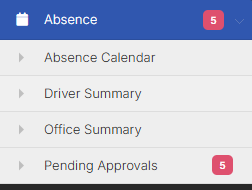
- The number of absences waiting for a decision shows as a red badge in the left-hand menu next to Absence and Pending Approvals.
Approvers can opt out of these emails: in your own user settings, switch off Absence Approval Requests under email preferences. The requests still appear on the Pending Approvals screen - you just will not be emailed about them.
When approval is skipped
An absence is approved automatically, without appearing on the Pending Approvals screen, when the person creating it is allowed to approve it themselves - that is, they hold the approval permission for that staff type, they are the staff member's manager with the managed staff permission, or they are a super user.
The Pending Approvals screen
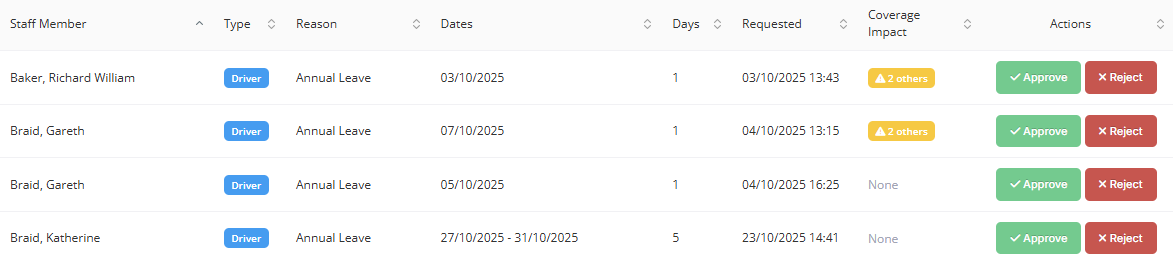
All requests waiting for a decision are listed under Absence > Pending Approvals. Each line shows the staff member, their type (Driver or Office Staff), the reason, dates, number of days, when it was requested, and the coverage impact.
-
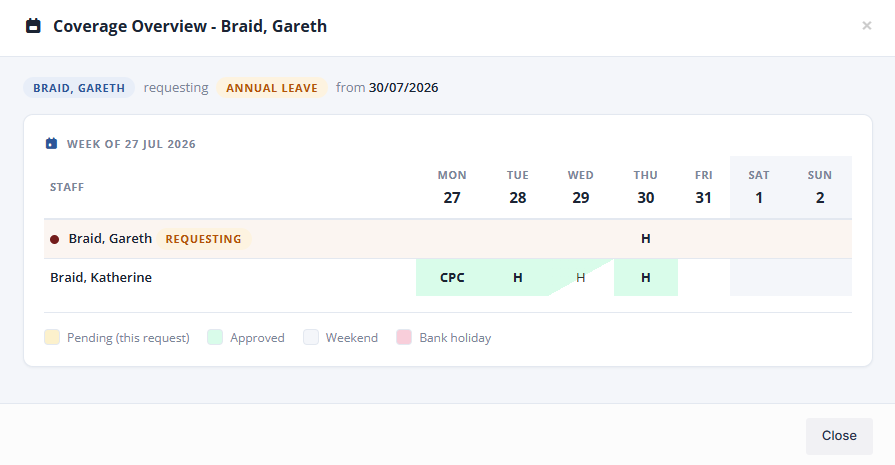
Coverage Impact - if other staff are already off at the same time, a yellow indicator appears. Hover over it to see who, or click it to open a week-by-week coverage calendar showing the request alongside everyone else's approved leave, weekends and bank holidays.
Approving and rejecting
To approve, click Approve and confirm. Two things happen:
- Any schedules already created for the staff member on those dates are cancelled, and jobs on them are released for re-planning. If work on a schedule has already started, the approval is blocked - deal with that schedule first, then approve.
- The staff member is notified - by email, and for drivers also by a notification in the app.
To reject, click Reject. You can enter a reason for the rejection - the staff member sees it, along with who made the decision, in their notification.
Common questions
An absence never appeared on the Pending Approvals screen. The person who created it was able to approve it themselves, so it was approved automatically.
I have approval permission but did not get an email. Check your own user settings - the Absence Approval Requests email preference may be switched off. Also note that when the staff member has an assigned manager who can approve, only the manager is emailed.
I clicked Approve and got an error about work already started. One of the staff member's schedules on those dates already has activity recorded, so it cannot be cancelled automatically. Sort that schedule out on the scheduler, then approve again.
Can I undo an approval? There is no un-approve - cancel the absence from the staff member's absence screen (the red X) and note that cancelled schedules are not recreated automatically.
Related
- Requesting an Absence from the App - the driver's side of the process.
- Managing Driver Absences - creating absences manually.
- Managing Office Staff and Absences - setting up office staff and their managers.
- Managing Users - user permissions in general.